Skip to content

How to Migrate from Shopify to WooCommerce (2026): A Complete Step-by-Step Guide
A practical, fact-checked walkthrough of moving your store from Shopify to WooCommerce — what to migrate, what won’t migrate, how to preserve your SEO, and the exact order of steps to follow.
Key Takeaways
- A successful Shopify → WooCommerce migration typically takes 2–8 weeks depending on catalog size, integrations, and how clean your data is.
- Products, customers, and orders migrate cleanly with the right tool. Design, apps, gift cards, subscriptions, and abandoned carts do not — these need separate work.
- Shopify’s URL structure (
/products/handle,/collections/handle) is different from WooCommerce’s (/product/slugby default). Without 301 redirects, you will lose most of your search traffic. - The three migration tools most teams use: Cart2Cart, LitExtension, and WP All Import. The first two are SAAS services; the third is a WordPress plugin for manual CSV work.
- Keep your Shopify store live during the migration. Point DNS only after WooCommerce is fully built, tested, and stocked with real data.
- WooCommerce 10.8+ (current as of mid-2026) recommends PHP 8.3 or higher (minimum supported: PHP 7.4) and MySQL 8.0+ / MariaDB 10.6+ (minimum supported: MySQL 5.6 / MariaDB 10.1). Older PHP/MySQL versions are at end-of-life and explicitly not recommended for new stores.
Who this guide is for (and who should hire a specialist WooCommerce agency instead)
This guide is for stores with less than a hundred SKUs, straightforward payment and shipping setups, and at least one person comfortable with WordPress basics. If that describes you, you can run a Shopify-to-WooCommerce migration yourself in 2–6 weeks with a tools and hosting cost budget of $500–$2,000
If any of the following apply, hire a specialist WooCommerce agency instead. The risk of getting it wrong is bigger than the cost of getting it right.
- You have more than 100 SKUs or complex product variants.
- You use a Shopify subscription app (ReCharge, Bold Subscriptions, Appstle, etc.) and need to preserve the subscription data.
- You have custom Shopify scripts, Shopify Functions, or headless Hydrogen storefronts.
- You rely on apps for critical business logic (ERP sync, complex tax, B2B pricing, custom checkout).
- You have an established SEO presence where a 30-day ranking dip would cost meaningful revenue.
- You process more than $200k/year and cannot afford extended downtime.
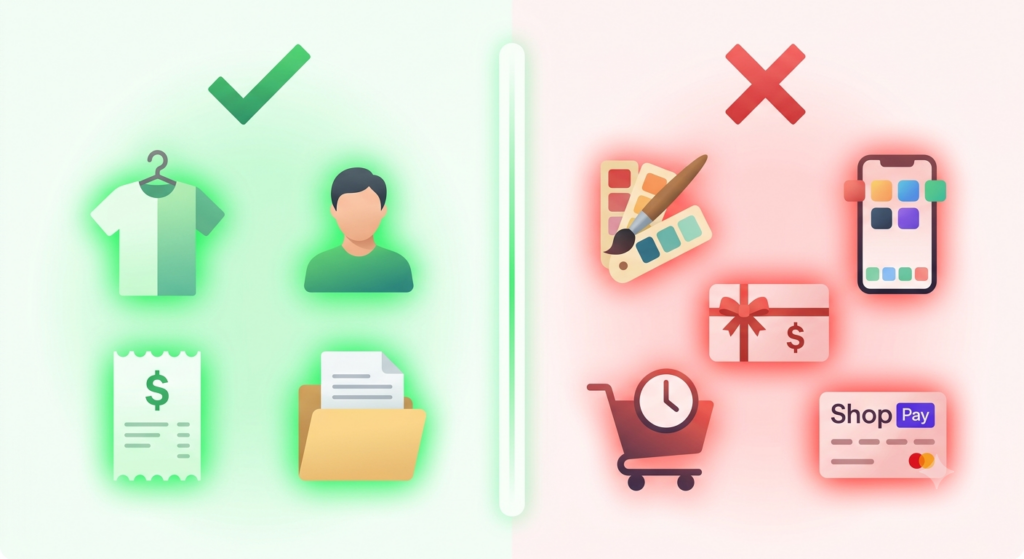
What migrates from Shopify to WooCommerce (and what doesn’t)
Before you start, you need an honest picture of what will and won’t survive the move. Setting expectations now saves a lot of frustration later.
What migrates cleanly
- Products — title, description, images, variants, options, prices, SKUs, inventory, weight, dimensions, tags, product type, vendor.
- Product images — re-downloaded from Shopify’s CDN and re-uploaded to your new WooCommerce media library.
- Customers — name, email, addresses, total spend, account creation date, customer tags.
- Orders — order line items, prices, taxes, shipping, status, customer notes, order date. Order IDs are non-sequential in WooCommerce by default (they’re WordPress post IDs). If you want sequential, predictable order numbers, install the Sequential Order Numbers Pro extension (~$49/year).
- Collections — Shopify collections become WooCommerce product categories.
- Pages and blog posts — content and URLs (with redirects).
- Discount codes — Shopify discount codes can be recreated manually in WooCommerce as coupons, since the rule engines are not identical.
- Reviews — WooCommerce has a built-in product review system with star ratings (enabled at WooCommerce → Settings → Products → Reviews, managed at Products → Reviews). Native Shopify product reviews — and reviews from Shopify apps like Judge.me or Loox — typically require migration via a dedicated tool or manual re-import.
What does NOT migrate
- Storefront design. Shopify’s Liquid theme engine is proprietary. Your new WooCommerce store gets a new theme. This is not a “lift and shift” of the visual layer.
- Shopify apps. Any business logic in Shopify apps (loyalty programs, subscriptions, custom checkouts, reviews, search, etc.) needs to be re-implemented with WooCommerce equivalents or custom code. There is no 1-click app porting.
- Shop Pay accounts and data. Shop Pay is Shopify’s wallet. WooCommerce has no equivalent. Customers will need to re-enter payment details at checkout.
- Shopify Payments data and gateway credentials. You re-enter credentials on the WooCommerce side. No card data, payout schedules, or fraud settings transfer.
- Abandoned checkouts. Shopify’s abandoned checkout data is not exposed in standard CSV exports. You’ll lose this historical data. (Newly abandoned carts after migration will be captured by your new tool, e.g., Klaviyo or Metorik.)
- Gift cards (balance and history). Shopify gift card data does not export. Active gift card balances need to be manually reissued on WooCommerce, and customers notified with new codes.
- POS data (if you use Shopify POS). Out of scope for the ecommerce migration. If you use Shopify POS, plan a separate engagement for the retail side.
- Customer login sessions and OAuth tokens. All customers will be logged out. Most stores end up requiring customers to reset their passwords on first login, because Shopify (bcrypt) and WordPress/WooCommerce (phpass) use incompatible password-hashing schemes. Some migration tools offer password re-hashing or “magic link” first-login flows, but you should plan and communicate a password reset as the default.
- Analytics history. GA4, Meta Pixel, and other analytics data does not transfer. Historical reporting stays in the old platform; new data starts accumulating on the WooCommerce side from the day of cutover.
Setting the right expectations with stakeholders (and customers) before you start is the single biggest determinant of whether the project is judged a success.
The migration tool landscape
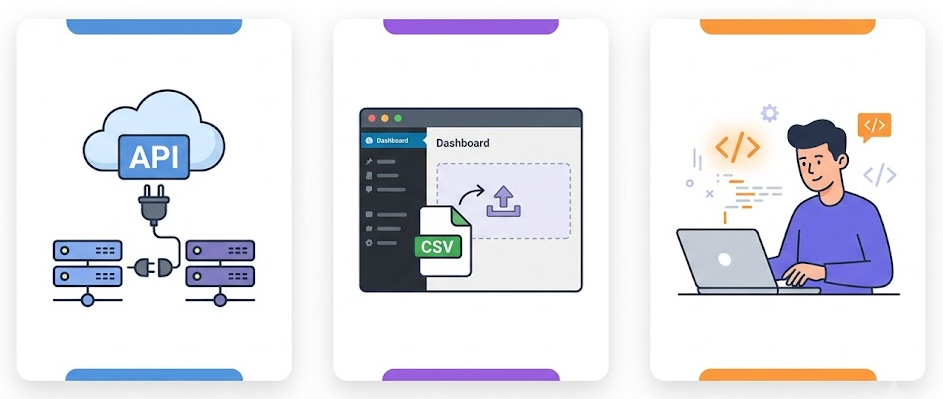
Three approaches work in 2026. Pick based on your catalog size, your budget, and how much custom data mapping you need.
Option 1: Cart2Cart (managed SAAS, most popular)
Cart2Cart is a SAAS migration service that connects to your source store (Shopify) and target store (WooCommerce) via API and handles the data transfer for you. You don’t touch CSVs or write any code.
Pricing is based on the number of entities (products, customers, orders) you migrate. Small stores start in the low hundreds of USD; large catalogs run into the thousands. Cart2Cart publishes a pricing estimator on its site — check the latest rates before committing, as pricing tiers change over time.
- Includes a free demo migration of a small sample so you can evaluate accuracy before paying.
- Supports creating 301 redirects from old Shopify URLs to new WooCommerce URLs (WooCommerce permalink structure must be configured separately in WordPress settings).
- Has support for recent data updates (re-sync new orders/customers added after the initial migration).
Best for: stores up to 100 SKUs that want a hands-off experience.
Option 2: LitExtension (managed SAAS, alternative)
LitExtension is the other major SAAS in this space. It supports 140+ source and target platforms, including Shopify → WooCommerce, and is widely used by agencies running migrations for clients.
LitExtension pricing is calculated by the number of entities migrated (products, customers, orders, categories, etc.). Use their online estimator for current rates.
- Free demo migration of a small sample (20 products, 20 customers, 20 orders) is offered.
- Supports SEO URL preservation as an add-on option during setup.
- Provides post-migration services: re-migration, recent data migration, and smart updates are available free for 3 months after the full migration (within volume limits).
Best for: stores that want a flexible pricing model or are running multiple migrations across clients.
Option 3: WP All Import (manual CSV, most control)
WP All Import is a WordPress plugin (paid) that lets you map a CSV file to WooCommerce product, customer, or order structures. It is the most flexible option but also the most labor-intensive.
You export your Shopify data as CSV (Shopify provides this for free from the admin), edit the columns to match WooCommerce’s structure, then import.
- Handles complex data mapping (custom fields, conditional logic, product relations).
- No support for password migration — customers will need to reset passwords on first login.
Best for: agencies and developers running custom migrations, or stores with very specific data requirements that SAAS tools can’t handle.
Which one should you pick?
- Under 100 SKUs and not running a subscription business: Cart2Cart or LitExtension free demo first. If accuracy is good in the demo, pay for the full migration.
- 100+ SKUs with standard Shopify apps: Cart2Cart or LitExtension. Both handle this range routinely.
- Over 300 SKUs, custom data, or subscription data: engage a specialist agency who can combine a SAAS tool with custom scripts for the parts that won’t transfer cleanly.
- Tight budget and developer on hand: WP All Import with manual CSV editing.
Before you migrate: the pre-flight checklist
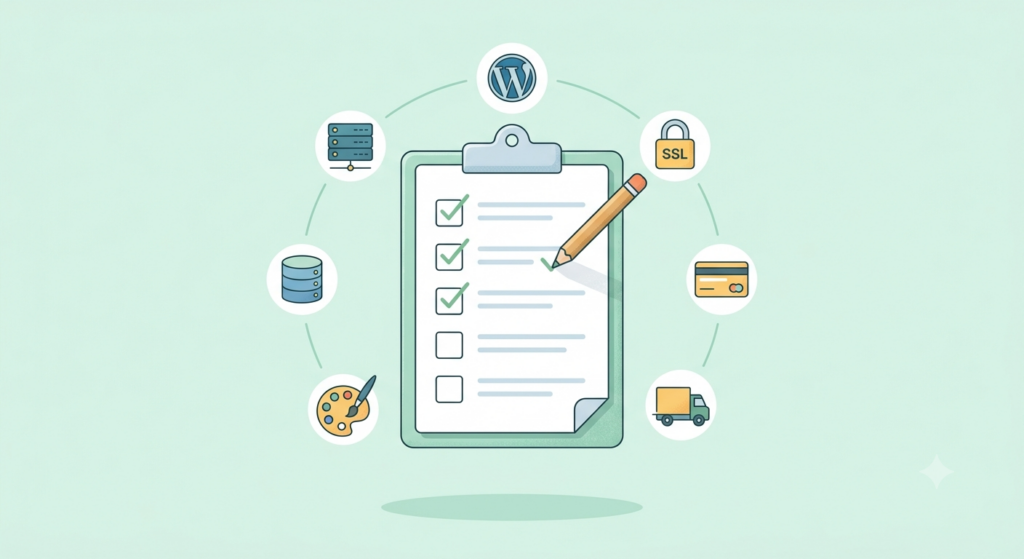
This is the work you do in the days and weeks before any data moves. Skipping it is the single biggest cause of failed migrations.
- Export your full Shopify store as CSV from each entity page. In the Shopify admin, exports are run from the entity itself — not from a central “Settings → Data” location. Go to Products → All products → Export, Customers → Export, and Orders → Export. For larger catalogs, filter by date range or status so you don’t pull a 500MB file. Save these to a safe location — they are your safety net.
- Use the Shopify API for a complete backup. The CSV export misses some data. Use the Shopify Admin API (or a backup app like Rewind or Matrixify) to capture abandoned checkouts, draft orders, gift cards, and meta fields that don’t surface in CSVs.
- Clean your data. Now is the time to remove discontinued products, merge duplicate SKUs, fix typos in descriptions, and standardize categories. The cost of cleaning data is 10× lower before migration than after. For post-migration bulk edits, see our guide to WooCommerce bulk product editing.
- Set up new hosting with current PHP and MySQL versions. WooCommerce 10.8+ (the current line as of 2026) recommends PHP 8.3 or higher (tested up to PHP 8.4) and MySQL 8.0+ or MariaDB 10.6+. The installer will still work on legacy PHP 7.4 / MySQL 5.6, but those versions are at end-of-life and explicitly not recommended for new stores. Confirm HTTPS is configured — payment gateways and modern browsers require it.
- Install WordPress + WooCommerce. Run WooCommerce’s Setup Wizard. Set your base location, currency, and tax setup. If you need a refresher, see our guide on how to download and install WooCommerce.
- Set your permalink structure before importing any data. In WordPress → Settings → Permalinks, choose “Post name” (or any non-plain structure). Then in WooCommerce → Settings → Permalinks, decide on a product base. The standard options are: Default (
/product/product-name/), Shop base (/shop/product-name/, using the shop page as a base), Shop base with category (/shop/category/product-name/), and Custom base (any prefix you choose). Make this decision before importing — changing it later requires redirect updates. - Install and configure payment gateways. WooCommerce does not share payment data with Shopify. You need new accounts or credentials for Stripe, PayPal, Square, WooPayments, or whichever gateways you plan to use. Install the corresponding WooCommerce extension and test in sandbox mode before going live. For help choosing, see our guide to the best WooCommerce payment gateways.
- Configure shipping zones and methods. WooCommerce’s shipping system is different from Shopify’s. Set up your zones (geographic regions), then assign methods (flat rate, free shipping, local pickup, or a carrier-calculated service like UPS/FedEx/USPS).
- Set up your theme. Pick a WooCommerce-compatible theme. Storefront (WooCommerce’s official free theme) is a clean baseline. For a more design-led store, Flatsome, Woodmart, Porto, Kadence, or Astra are popular paid options. Build the theme before importing products so you can verify layout and image rendering with real data.
- Install required plugins: SEO (Rank Math or Yoast), backups (UpdraftPlus, BlogVault, or Jetpack), security (Wordfence or Sucuri), caching (WP Rocket, LiteSpeed Cache, or your host’s built-in), image optimization (ShortPixel, Imagify, or Smush), and SSL certificate (Let’s Encrypt is free and sufficient — confirm it’s installed and forcing HTTPS on all pages).
- Decide whether to enable HPOS (High-Performance Order Storage). WooCommerce 8.2+ uses HPOS as the default order storage for new installations, storing order data in dedicated tables (
_wc_orders,_wc_order_addresses,_wc_order_operational_data,_wc_orders_meta) instead of the legacy_posts/_postmetatables. HPOS is significantly faster and is the recommended path. Before importing, verify that your migration tool and any subscription or extension you plan to install (e.g., WooCommerce Subscriptions) are HPOS-compatible. You can switch back to legacy storage under WooCommerce → Settings → Advanced → Features if an extension isn’t compatible, but plan for HPOS as the default. - Plan for paid WooCommerce extensions that match your Shopify apps. WooCommerce core is free, but the heavy-lifting extensions are not. WooCommerce Subscriptions (the standard for recurring billing) is $279/year. Sequential Order Numbers Pro is ~$49/year. WooCommerce Gift Cards, Product Add-Ons, Shipment Tracking, and the carrier-specific shipping extensions (UPS, FedEx, USPS) are all paid. Budget accordingly — a serious store typically accumulates $500–$2,000/year in extension licenses alone.
- Preserve your domain. Make sure your domain is registered with a registrar you control (Cloudflare, Namecheap, GoDaddy, etc.) — not just a Shopify-managed domain. If it’s still on Shopify, transfer it out first. Migration is much smoother when the DNS lives at a neutral registrar.
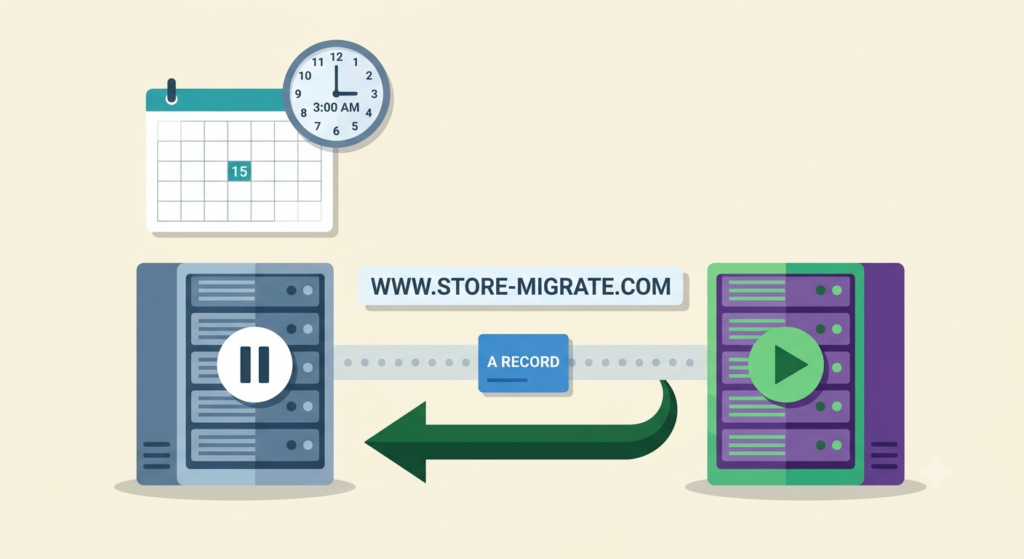
- Lower your DNS TTL 48 hours before cutover. Change the TTL (Time To Live) on your domain’s A record to 300 seconds (5 minutes) two days before you switch DNS. This lets you roll back faster if anything goes wrong.
The migration itself: step by step
By this point you have a working WordPress + WooCommerce site on new hosting, a clean data export from Shopify, a chosen migration tool, and your theme/payments/shipping configured. Now move the data.
Step 1: Run the free demo migration
Both Cart2Cart and LitExtension offer free demo migrations. Use them. You’ll see exactly how your products, customers, and orders map to WooCommerce before you pay for the full run.
- Check that product variants come across correctly (size, color, material combinations).
- Check that customer addresses and order histories are intact.
- Check that product images render properly on the new platform.
- Check that product categories match your intended structure.
If anything looks off in the demo, fix the source data or contact the tool’s support before running the full migration. Most issues are easier to fix before the data moves than after.
Step 2: Run the full migration
Once the demo passes your checks, run the full migration. Both Cart2Cart and LitExtension run the migration on their servers — your Shopify store stays live the entire time, so customers can keep buying while the data moves.
Typical runtime: a few hours for a few hundred products, up to 24–48 hours for stores with 50,000+ SKUs and millions of order history rows.
The migration tool will report counts at the end. Compare entity counts to your Shopify export to confirm nothing was dropped.
If you opted for SEO URL redirect creation, the tool will create 301 redirects from the old Shopify URLs to the new WooCommerce URLs. Verify a sample manually.
Step 3: Verify the data
Do not trust the tool’s “success” report. Verify manually.
- Open 10 products at random. Check images, descriptions, variants, prices, inventory, categories, and SEO meta.
- Open 10 customers. Check addresses, order history, and account status.
- Open 10 orders. Check line items, taxes, shipping, totals, and status.
- Check that inventory counts are accurate against your Shopify export.
- Check that no orphan images exist in the WooCommerce media library (a sign that the image migration failed silently).
Step 4: Build out 301 redirects
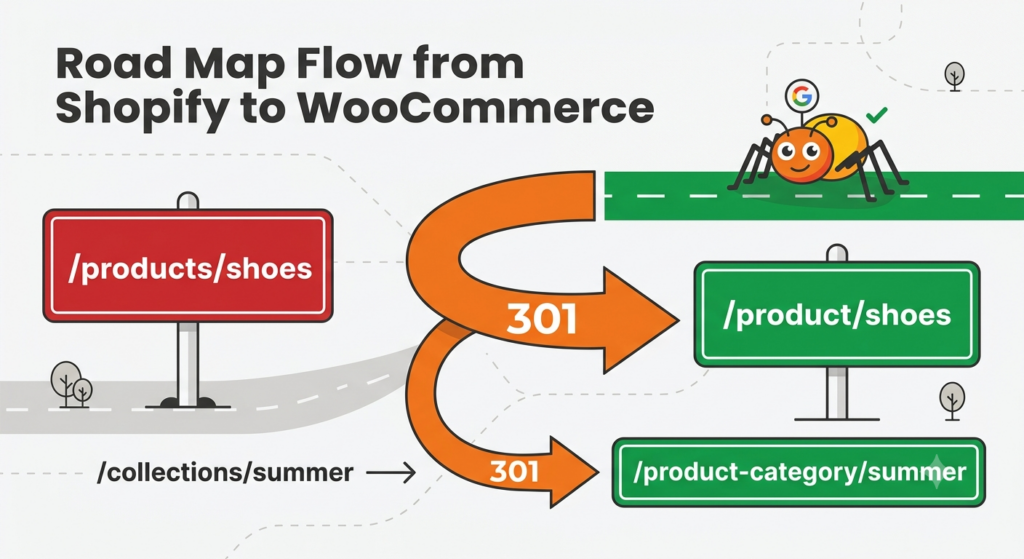
This is the step most non-technical teams skip, and it is the single biggest cause of post-migration traffic loss. Shopify URLs and WooCommerce URLs are structured differently:
- Shopify:
https://example.com/products/product-handleandhttps://example.com/collections/collection-handle - WooCommerce default:
https://example.com/product/product-slug/andhttps://example.com/product-category/category-slug/
Every old Shopify URL needs a 301 redirect to the corresponding WooCommerce URL. For most stores, this means two redirect maps:
- Product redirects:
/products/old-handle→/product/new-slug/(one redirect per product, generated from your Shopify export + WooCommerce slugs) - Collection redirects:
/collections/old-handle→/product-category/new-slug/
Tools to build and manage these:
- Redirection (free WordPress plugin) — handles bulk CSV import of redirect rules.
- Rank Math or Yoast SEO plugins have built-in redirect managers.
- .htaccess (Apache) or nginx config — for high-volume redirects, do this at the server level, not the WordPress level, for performance.
Shopify’s default URL prefixes are /products/ and /collections/. If you want a cleaner long-term structure, leave WooCommerce on the default /product/ and /product-category/ prefixes and use a server-level rewrite rule to handle the pattern change from /products/ to /product/. This requires proper Apache or nginx configuration — consult your developer or use the Redirection plugin for a safer approach. Collections require a per-URL redirect because the slugs typically differ.
Step 5: Set up structured data and SEO continuity
Beyond 301s, you need to tell Google about the move.
- Generate a new XML sitemap in WordPress (Rank Math and Yoast both do this automatically).
- Submit the new sitemap in Google Search Console as soon as the new site is live.
- Preserve product structured data (Product, Offer, AggregateRating, Review schema). Both Rank Math and Yoast emit this for WooCommerce products. Verify with Google’s Rich Results Test on a sample of products.
- Verify Open Graph and Twitter Card tags so social sharing previews correctly on the new platform.
Note on the Search Console “Change of Address” tool: it is for domain-level moves (e.g., olddomain.com → newdomain.com), not for platform migrations on the same domain. Since you’re keeping your domain and just changing the CMS, you don’t need this tool — 301s plus a fresh sitemap submission are the correct path. If you are also changing domains, the tool applies, but the underlying 301 redirects are still the most important signal.
Step 6: Recreate critical Shopify apps as WooCommerce equivalents
This is the work the migration tool does not do. For each critical Shopify app you depend on, identify and install the WooCommerce equivalent before cutover.
- Email marketing (Klaviyo, Mailchimp, ActiveCampaign) — install the WooCommerce integration, then export your subscriber list from the old platform and re-import. Re-enable the appropriate event tracking (order placed, fulfilled, abandoned cart).
- Reviews (Judge.me, Loox, Yotpo) — install the WooCommerce version. Existing reviews can be re-imported via CSV from the old app’s data export. Alternatively, WooCommerce’s built-in review system (Settings → Products → Reviews) covers the basics if you don’t need photo reviews, reply templates, or rich snippet customization.
- Subscriptions (ReCharge, Bold, Appstle) — install WooCommerce Subscriptions (paid: $279/year, supports HPOS and Cart/Checkout blocks). Then run a dedicated migration with the subscription app’s support team to move active subscribers, billing schedules, and payment methods. Do not cut over your production subscription billing until the new platform has been running parallel for at least one full billing cycle.
- Search (Searchanise, Algolia) — install the WooCommerce search plugin and trigger a re-index of your catalog.
- Tax (Shopify Tax, Avalara, TaxJar) — set up the WooCommerce equivalent. WooCommerce Tax (a free, Woo-built service powered by TaxJar) is currently available in the United States, Canada, the United Kingdom, Australia, and most EU member states. If you sell from outside those regions, or you need more advanced tax logic (VAT MOSS, marketplace facilitator, exemption certificates), you’ll need a different tax extension.
- Shipping carriers (ShipStation, Shippo, EasyPost) — install the WooCommerce extension and reconfigure carrier accounts. Note that carrier-specific shipping extensions (UPS, FedEx, USPS) are paid and licensed separately from WooCommerce core.
- ERP/inventory/CRM (NetSuite, SAP, HubSpot, Salesforce) — these rarely have a 1-click WooCommerce equivalent. Engage a developer or your ERP partner for the integration.
Critical reminder: Shop Pay data does not transfer. Your customers will need to re-enter payment information on the new site. Communicate this clearly in your launch email and add a banner to the new checkout for the first 30 days.
Cutover day: how to switch DNS safely
Cutover is the moment you point your domain at the new WooCommerce hosting. Do this in a low-traffic window (early morning, weekday, not a holiday weekend, not Black Friday week).
- Take a final backup of the Shopify store via CSV export and API dump. Even if you’re committed to the move, you want a rollback option for at least 90 days.
- Put the Shopify store in “password protected” mode (Settings → Password protection → enable). New customers can’t check out, but the data stays accessible if you need to roll back.
- Disable payment authorizations on Shopify so no new orders come in. Your last 24 hours of Shopify orders will need to be re-imported into WooCommerce after cutover — both Cart2Cart and LitExtension support a “recent data” re-sync for this exact reason.
- Update DNS A record at your domain registrar to point at the new WooCommerce hosting IP. With the 5-minute TTL you set 48 hours earlier, propagation completes within minutes for most resolvers.
- Verify the new site loads at your domain. Check homepage, a few category pages, a few product pages, cart, checkout, and account login.
- Run a real test transaction with a real (small) purchase. Use a real card in live mode. Verify the payment gateway captures correctly and the order shows up in WooCommerce. Then refund the test order.
- Run a real test signup — create a new customer account, place an order, verify the confirmation email arrives, verify the order appears in the customer’s account dashboard.
- Test password reset for an existing migrated customer to confirm the reset flow works. (Remember: most stores require customers to reset passwords on first login because Shopify and WordPress use different password-hashing schemes.)
- Update payment gateway webhook URLs if needed (most modern gateways handle this automatically, but verify in your gateway dashboard).
- Resubmit the new XML sitemap in Google Search Console if you haven’t already.
The first 30 days after cutover
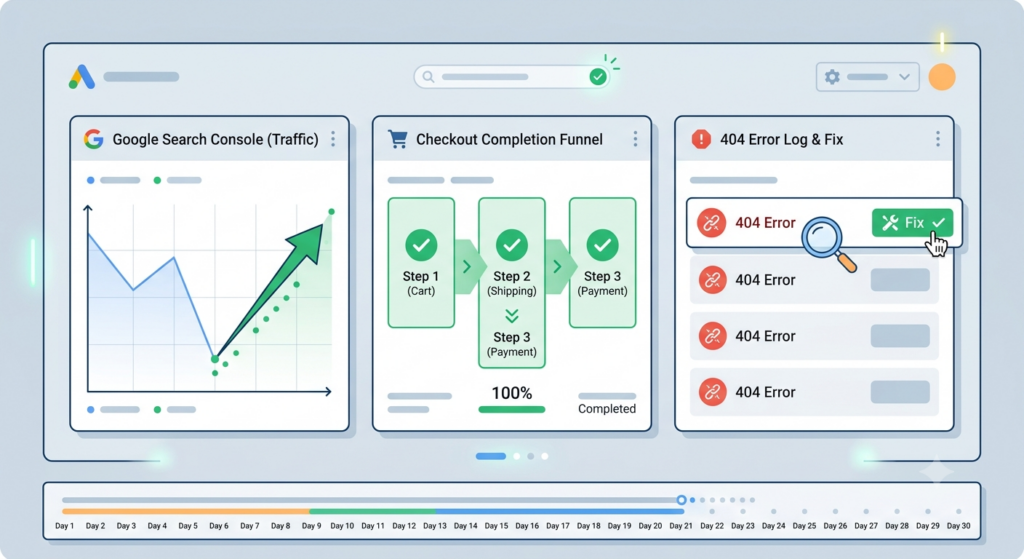
- Monitor 404 errors daily in Google Search Console. Any unexpected 404s need a redirect added. The free Redirection plugin logs all 404s on your site; review weekly.
- Re-sync new orders and customers from Shopify at the end of week one to capture any stragglers. Both Cart2Cart and LitExtension offer a free “recent data” re-sync for the first 3 months.
- Watch checkout completion rate in your WooCommerce analytics (or Klaviyo/Metorik). A drop of more than 10% versus Shopify baseline usually means a checkout UX issue, payment gateway configuration problem, or unexpected tax/shipping calculation.
- Watch organic search traffic in Google Search Console. Expect a 10–20% dip in the first 2–4 weeks. Recovery to pre-migration levels typically takes 6–12 weeks, though some sites may require 3–6 months with proper 301 redirects.
- Email customers proactively about the move, the new login experience, and the loss of Shop Pay one-click checkout. Include a one-time 10% off code as a goodwill gesture and to drive a quick purchase that validates the new end-to-end flow.
- Keep the Shopify store backed up and accessible for 90 days. Don’t delete it. Don’t pause the subscription yet. You’ll want it for at least one quarter to resolve any historical data disputes, chargebacks, or tax questions.
Common migration mistakes (and how to avoid them)
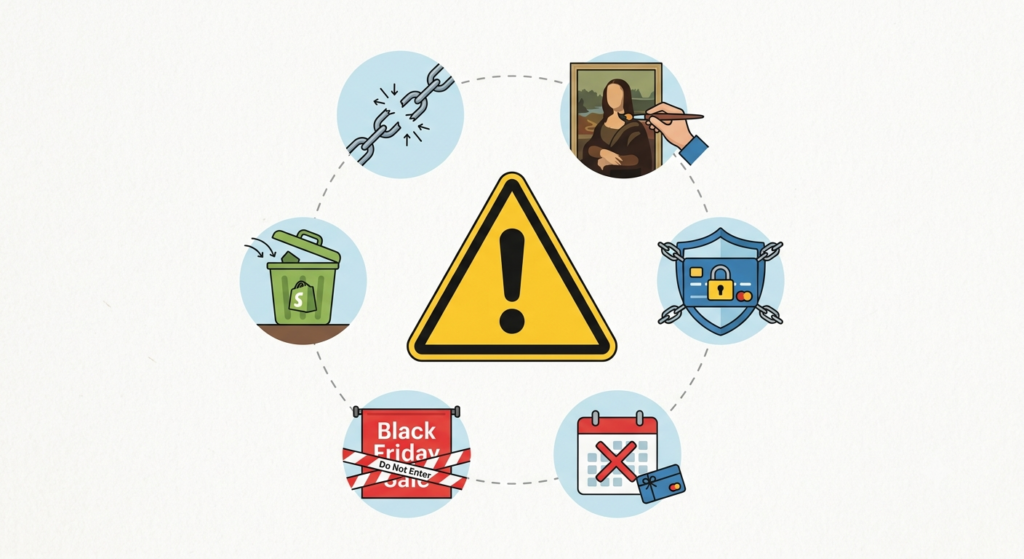
- Skipping 301 redirects. The single biggest cause of post-migration traffic loss. Generate a complete redirect map before cutover, not after.
- Choosing a WooCommerce theme based on the Shopify theme. Your theme is not portable. Pick a fresh WooCommerce theme, build it with real products imported, and resist the urge to “make it look like the old site.” Better: take the migration as an opportunity to improve the design.
- Assuming payment data migrates. It doesn’t. Recreate payment gateway accounts and test thoroughly before going live.
- Forgetting subscriptions. If you use a subscription app on Shopify, the standard data migration does not include subscription schedules, billing cycles, or stored payment methods. Engage the subscription app’s support for a dedicated migration before cutover. WooCommerce Subscriptions is the standard replacement ($279/year) and is HPOS- and Cart/Checkout-blocks-compatible.
- Forgetting gift cards. Shopify gift card balances do not transfer. Manually reissue active gift cards on the new platform (WooCommerce Gift Cards is a paid extension) and notify the recipients with new codes.
- Forgetting email automations. Order confirmations, shipping notifications, abandoned cart sequences — all of these need to be rebuilt in Klaviyo/Mailchimp/ActiveCampaign on the WooCommerce side. The integration is not 1-click.
- Cutting over during a peak sales period. Do not migrate during Black Friday week, your busiest seasonal month, or any week with a major sale planned. Migrate in your slowest 2-week window.
- Not telling customers about the move. Customers will notice the new login experience, the missing Shop Pay, and the need to re-enter payment info. Get ahead of the confusion with a clear email sent 7 days before and 1 day before the cutover.
- Deleting the Shopify store on day 1. Keep it (in password-protected mode) for at least 90 days. You will need it for chargeback disputes, historical tax reporting, and last-minute data lookups.
- Underestimating extension licensing costs. WooCommerce core is free, but a serious store typically runs $500–$2,000/year in paid extensions (Subscriptions, Gift Cards, sequential order numbers, carrier shipping, memberships). Build this into your migration budget.
Data privacy and GDPR considerations
Moving customer data between platforms has legal implications that many Shopify-to-WooCommerce guides ignore. A few things to think about before you start.

- You need a legal basis to move the data. Under GDPR (and equivalent laws in the UK, Canada, Australia, and elsewhere), you can only transfer personal data to a new processor (WooCommerce and your new hosting provider) on a documented legal basis. Continuing to fulfill orders and contracts with your existing customers is generally accepted as legitimate interest, but document the decision before the migration.
- Pick hosting in an appropriate jurisdiction. If your Shopify store was US-based and your new WooCommerce host is in the EU (or vice versa), that may be a cross-border data transfer. Confirm your host’s data processing addendum and that Standard Contractual Clauses or an equivalent mechanism is in place.
- Honor data subject requests across both platforms during the transition. If a customer asks for their data to be deleted, you need to find and delete it in both Shopify and WooCommerce for at least the first 90 days.
- Update your privacy policy on the new platform to reflect the new processors (payment gateway, hosting, email marketing, etc.).
What a successful migration looks like at the 90-day mark
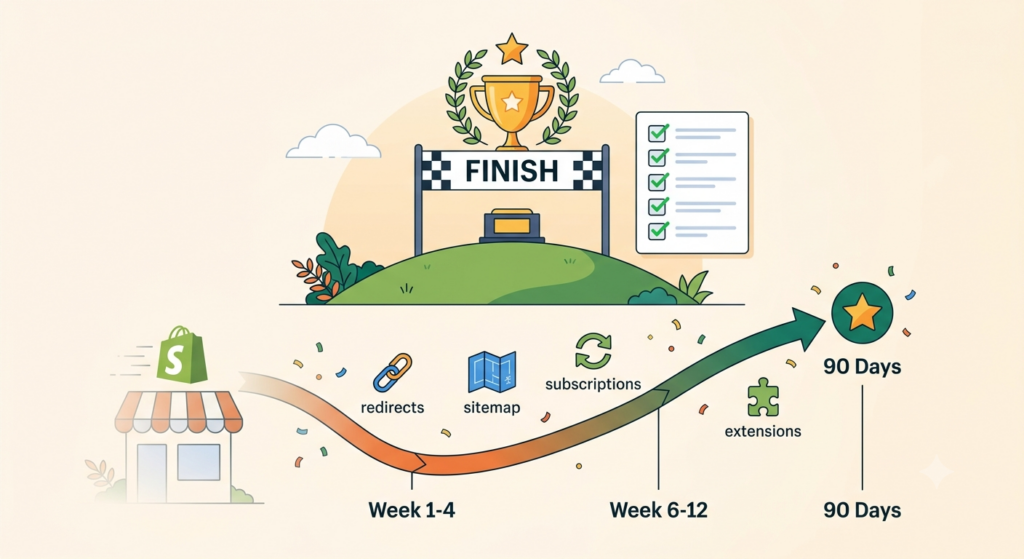
You can call a Shopify-to-WooCommerce migration a success if, by 90 days after cutover:
- Organic search traffic is within 10% of pre-migration levels and trending upward.
- Checkout completion rate is within 5% of pre-migration baseline.
- Customer login works for at least 95% of returning customers (with the rest using the password reset flow).
- All subscriptions are billing correctly on the new platform.
- No critical data was lost in the migration (verified by comparing Shopify export to WooCommerce import).
- All 301 redirects are in place and resolving correctly.
- No 404s on previously indexed pages in Google Search Console.
- All paid extensions (Subscriptions, Gift Cards, shipping, etc.) are licensed, updated, and HPOS-compatible.
If any of these are off, the work to fix them is much easier in the first 90 days than in month six.
Conclusion: migration is a project, not a button
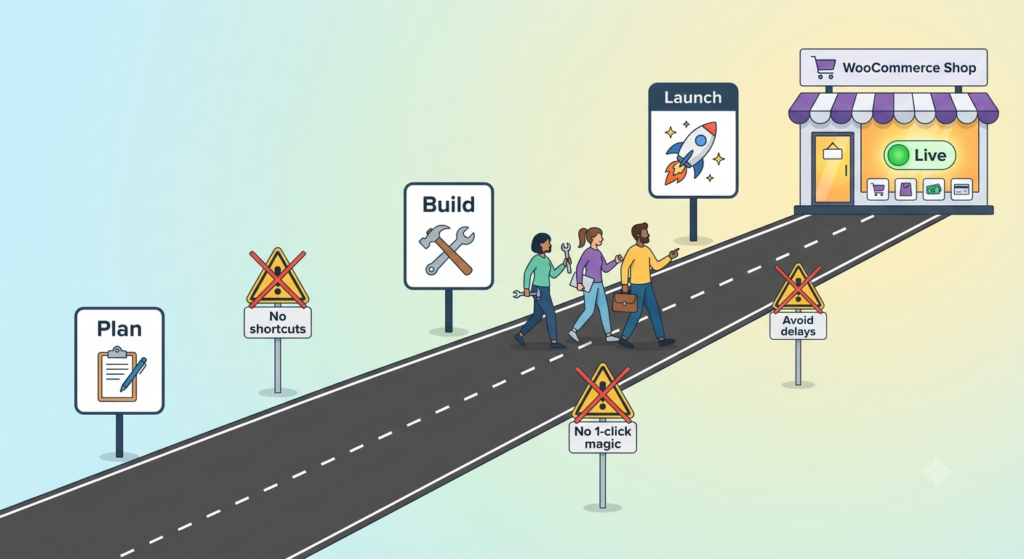
There is no “migrate in one click” button for Shopify to WooCommerce. Anyone who tells you otherwise is selling something. The good news is that with a clear plan, the right tool, and 2–6 weeks of focused work, a Shopify-to-WooCommerce migration is a well-trodden path that thousands of stores have completed successfully.
The three most common reasons migrations fail: skipping 301 redirects, treating it as a design port rather than a fresh build, and underestimating the work to re-implement Shopify app functionality on the WooCommerce side. Avoid those three, and you’ll be in the 90% of stores that come out the other side with a better platform and a stronger search presence.
Need help with a real migration? We run these projects end-to-end at Progressus — discovery, design, migration, redirect mapping, integration re-implementation, and post-launch support. As certified WooExperts with 10+ years of enterprise experience and proven results for clients like PostNL, DHL, and Automattic, we specialize in complex WooCommerce builds that other agencies won’t touch. If you’d like a second opinion on your migration plan, get in touch and we’ll review your scope for free.
Frequently asked questions
How long does it take to migrate from Shopify to WooCommerce?
Plan for 2–6 weeks for a typical small-to-mid-size store (up to 500 SKUs). Larger catalogs with complex data, custom Shopify apps, or subscription businesses can take 2–3 months. The data migration itself usually takes a few hours, but the surrounding work — design, integrations, redirects, and testing — dominates the timeline.
How much does a Shopify-to-WooCommerce migration cost?
If you do it yourself: $500–$2,000 in tools, hosting, theme/plugin licenses, plus $500–$2,000/year in paid WooCommerce extensions (Subscriptions, Gift Cards, carrier shipping, etc.) that you’ll need going forward. If you hire a specialist WooCommerce agency: $5,000–$50,000 for a typical small-to-mid-size store, depending on catalog size, integrations, and design scope.
What are WooCommerce’s current server requirements?
For WooCommerce 10.8 and later (the current line as of 2026): WordPress 6.9 or higher, recommended PHP 8.3 or higher (tested up to PHP 8.4, minimum supported: PHP 7.4), MySQL 8.0+ or MariaDB 10.6+ (minimum supported: MySQL 5.6 / MariaDB 10.1), and HTTPS support. The installer will still run on legacy PHP 7.4 / MySQL 5.6, but those versions are past end-of-life and not recommended for new stores.
Will I lose my SEO rankings if I migrate?
Expect a 10–20% dip in organic traffic in the first 2–4 weeks if you implement 301 redirects properly. Recovery to pre-migration levels typically takes 6–12 weeks, though some sites may require 3–6 months. Without 301 redirects, you will lose the majority of your search traffic and rankings. Redirects are not optional — they are the single most important technical step of the migration.
Can I migrate Shopify subscriptions to WooCommerce?
Not through a standard data migration tool. If you use ReCharge, Bold Subscriptions, Appstle, or any other Shopify subscription app, you need a dedicated migration handled by the app’s support team or a specialist agency. Active subscribers, billing schedules, next billing dates, and stored payment methods all need to be ported individually. Run the new subscription platform in parallel with the old for at least one full billing cycle before you cancel the old platform. WooCommerce Subscriptions is the standard replacement and costs $279/year.
Do my customers need to reset their passwords?
Almost always, yes. Shopify (bcrypt) and WordPress/WooCommerce (phpass) use incompatible password-hashing schemes, so original passwords typically can’t be transferred in a usable form. Some migration tools offer password re-hashing or magic-link first-login flows, but plan and communicate a password reset as the default. Send a clear email 7 days before and again 1 day before the cutover with a reset link.
Does WooCommerce have a built-in review system?
Yes. WooCommerce has had a built-in product review system with star ratings since its inception. Enable it at WooCommerce → Settings → Products → Reviews; manage reviews at Products → Reviews. For richer features (photo reviews, reply templates, advanced rich snippets), install a dedicated reviews extension like Judge.me, Loox, or Yotpo.
What happens to Shop Pay and Shopify Payments?
Shop Pay is Shopify’s wallet and does not transfer to WooCommerce. Customers will need to re-enter payment details at checkout. Shopify Payments (Shopify’s built-in gateway) also does not transfer. On WooCommerce, you set up Stripe, PayPal, Square, WooPayments, or another gateway from scratch. For help choosing, see our guide to the best WooCommerce payment gateways.
What about gift cards?
Shopify gift card data does not export via CSV. Active gift card balances need to be manually reissued on the WooCommerce side using a gift card extension (WooCommerce Gift Certificates is the most common choice), and customers need to be notified with new codes and told their old codes are no longer valid.
What is HPOS and does my migration tool support it?
HPOS (High-Performance Order Storage) is WooCommerce’s modern order storage system, available since WooCommerce 8.2 and the default for new installations. Instead of storing order data in the legacy WordPress _posts and _postmeta tables, HPOS uses dedicated tables (_wc_orders, _wc_order_addresses, _wc_order_operational_data, _wc_orders_meta) for significantly faster queries and better scalability. Before importing data, confirm that your migration tool and any extension you plan to install (Subscriptions, Bookings, etc.) is HPOS-compatible. You can find incompatible extensions at WooCommerce → Settings → Advanced → Features.
Can I keep my existing domain?
Yes. Make sure your domain is registered with a registrar you control (Cloudflare, Namecheap, GoDaddy, etc.) rather than managed by Shopify. If Shopify currently manages it, transfer it out first. Once the domain is at a neutral registrar, update the A record to point at your new WooCommerce hosting on cutover day.
What’s the best Shopify-to-WooCommerce migration tool?
For most stores, Cart2Cart or LitExtension. Both are SAAS migration services that handle the data transfer via API, support SEO URL redirect creation, and offer free demo migrations so you can validate accuracy before paying. For developers running custom migrations, WP All Import with manual CSV editing is the most flexible option. Check each tool’s current pricing on their site before committing, as tier rates change periodically.
Can I migrate abandoned carts from Shopify to WooCommerce?
No. Shopify does not export abandoned checkout data in its CSV export or via its standard API. You’ll lose this historical data. New abandoned carts after the migration will be captured by your new abandonment tool (Klaviyo, ActiveCampaign, Metorik, or similar).
How do I migrate from Shopify to WooCommerce without losing SEO?
Implement complete 301 redirects from every old Shopify URL to the corresponding WooCommerce URL. Shopify’s URL structure is /products/handle and /collections/handle; WooCommerce’s is /product/slug/ and /product-category/slug/. Use the free Redirection plugin in WordPress to manage redirects in bulk, or do it at the server level (.htaccess on Apache, nginx config on nginx) for performance. Submit the new XML sitemap in Google Search Console on cutover day. The Search Console “Change of Address” tool is for domain-level moves, not same-domain platform migrations, so it doesn’t apply here.
When should I hire an agency for a Shopify-to-WooCommerce migration?
Hire a specialist if you have more than 100 SKUs, use a Shopify subscription app that needs active subscription data ported, rely on Shopify apps for critical business logic, have a meaningful SEO presence where a ranking dip would cost significant revenue, or process more than $200k/year and cannot afford extended downtime. For stores under 100 SKUs with standard payment/shipping setups, the DIY path with Cart2Cart or LitExtension is usually fine. If you need expert help, Progressus offers end-to-end migration services with a free scope review.