 Skip to content

Moving a store off BigCommerce means moving three separate things: your data, your URLs, and your customers’ ability to log in. Each one behaves differently. Products (with variants), customers, orders, coupons, CMS pages, and blog posts migrate well with the right tool, with a manual check afterwards. Stencil themes, apps, price lists, and customer passwords do not. This guide covers what transfers, which tools to use, how to build the 301 map, and the cutover sequence that protects your search traffic, in the order of operations that protects search traffic on a WooCommerce replatform. If you are coming from Shopify or Magento instead, see our Shopify to WooCommerce migration guide or our Magento to WooCommerce migration guide.
Key takeaways
- Data migrates; the storefront does not. Products, variants, customers, orders, coupons, CMS pages, blog posts, and reviews move via a SaaS migration tool or CSV import. Stencil themes, BigCommerce apps, price lists, and customer passwords cannot be carried across automatically.
- Every customer resets their password. BigCommerce does not export passwords, and its API never returns them. Plan the reset email and announce it before cutover.
- Every product and category URL changes. BigCommerce’s recommended URL setting puts them at the domain root (
/product-name/); WooCommerce defaults to/product/slug/. A complete 1:1 301 map is the single most important SEO step, and Google says to keep it in place for at least a year. - Three tool options cover almost every store: LitExtension or Cart2Cart (SaaS, entity-based pricing, free demos) for hands-off transfers, or BigCommerce CSV exports plus WP All Import for full control over mapping.
- Price lists need a rebuild. They are a Performance-plan (formerly Enterprise) feature, no migration tool lists them as an entity, and WooCommerce has no core equivalent. Budget a B2B pricing plugin.
- Switch DNS before you check redirects live and submit the sitemap. Until DNS points at WooCommerce, old URLs still resolve on BigCommerce, so redirect checks and Search Console submissions only mean something after the switch.
- Expect a temporary traffic dip. A temporary organic dip, often recovering within a couple of months, is normal with a complete redirect map. Google confirms rankings fluctuate while it recrawls, which takes “a few weeks or more” for medium-sized sites.
Why BigCommerce merchants are moving in 2026
Scale is one reason. WooCommerce runs about 46% of the ecommerce sites W3Techs monitors, against BigCommerce’s 0.6% (November 2026), which decides how many developers, extensions, and agencies you can draw on.
Cost is the other. BigCommerce’s pricing update of June 1, 2026 renamed the self-service plans (Standard became Core, Plus became Growth, Pro became Scale, and Enterprise became Performance) and added two costs that grow with your sales. The first is lower GMV caps. Your plan auto-upgrades when trailing-12-month sales pass its cap, measured as “inclusive GMV,” which BigCommerce calculates as gross order value minus a 10% reduction, so it trails your own revenue figure. The second is the Open Payment Provider Fee, charged on orders processed through any gateway outside BigCommerce’s embedded provider list, including offline and manual methods such as B2B purchase orders.
| Plan (new name) | Formerly | GMV rule | Open Payment Provider Fee |
|---|---|---|---|
| Core | Standard | Auto-upgrades above $30,000 trailing-12-month GMV (was $50,000) | 2.0% |
| Growth | Plus | Auto-upgrades above $100,000 (was $180,000) | 1.0% |
| Scale | Pro | $33,333 monthly GMV cap with a 0.9% overage; moves to Performance at $2M trailing-12-month GMV | 0.6% |
| Performance | Enterprise | $250,000 monthly GMV cap with a 0.6% overage | Custom; contracted plans are exempt |
Annual-contract merchants move to the new terms at renewal. WooCommerce charges neither a GMV-linked plan fee nor a gateway surcharge; your costs are hosting, extensions, and payment-processor fees. For a full budget breakdown, see our guide to what a WooCommerce migration costs.
What migrates from BigCommerce, and what does not
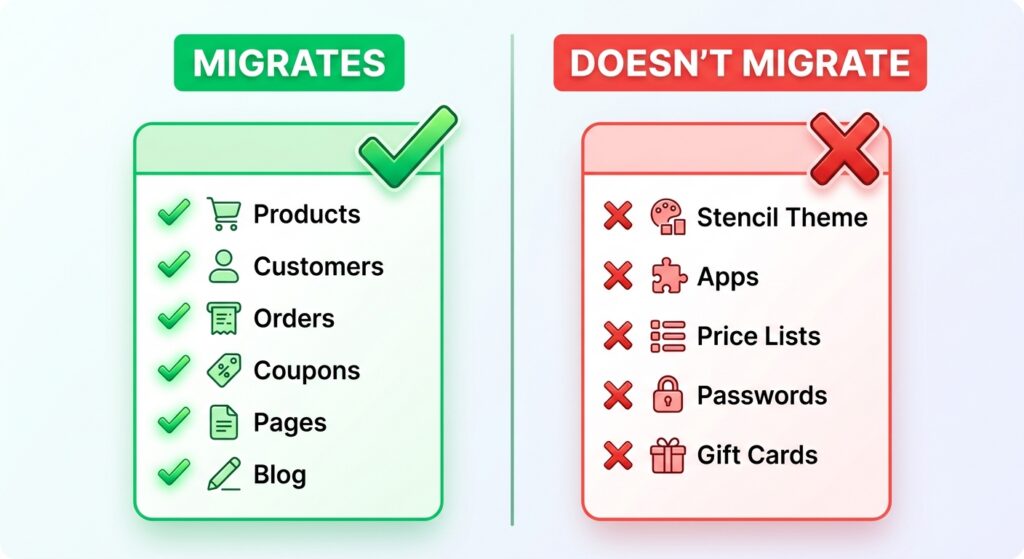
Before any tooling decision, get an honest inventory. The table reflects what the migration services list as supported entities for this route, checked against BigCommerce’s own documentation. Confirm the exact entity list in each tool’s free demo before you buy.
| Item | Migrates? | Notes |
|---|---|---|
| Products and variants | Yes | Names, descriptions, SKUs, prices, sale prices, variant SKU/price/weight/stock, images, tags, UPC/EAN, status |
| Categories | Yes | Names, descriptions, images, SEO metadata |
| Customers | Yes, without passwords | Names, emails, billing and shipping addresses. Customer groups come across as customer data, but not their pricing. |
| Orders | Yes | IDs, dates, statuses, line items, totals, addresses. Preserving original order IDs is an option (paid on Cart2Cart). |
| Coupons, CMS pages, blog posts | Yes | Codes, amounts, and expiry; page and post titles, bodies, and SEO URLs |
| Reviews | Yes | Rating, author, date, and comment (LitExtension lists reviews; check Cart2Cart’s estimator) |
| Modifier options | Partly | Option selections transfer as data, but BigCommerce modifiers (engraving, add-ons that change fulfilment without changing the SKU) have no native WooCommerce equivalent. Rebuild them as product add-ons with a plugin. |
| Very large variant trees | Yes, with testing | BigCommerce allows up to 600 SKUs per product and 250 values per option (platform limits). Products near that scale make heavy WooCommerce product pages, so load-test them on your hosting before the full import. |
| Stencil theme | No | Stencil is Handlebars-based with a Node.js CLI; WordPress themes are PHP. The design is rebuilt, not ported. |
| Apps | No | Logic in marketplace apps (subscriptions, loyalty, search, reviews widgets) is re-implemented with WooCommerce extensions or custom code. |
| Price lists | No | Variant-level price records assigned to customer groups or channels, a Performance-plan feature. Rebuild with a B2B pricing plugin. |
| Customer passwords | No | Not included in BigCommerce exports; the API can set or force-reset a password but never read one. |
| Gift certificate balances, stored cards | No | Reissue balances as new codes; customers re-enter card details. |
| Analytics history | No | GA4 and ad-pixel history stays with the old property settings; new data starts at cutover. |
Passwords and price lists are the two BigCommerce assets you cannot simply export and re-import. Plan for both before cutover day, not after.
The migration tool landscape
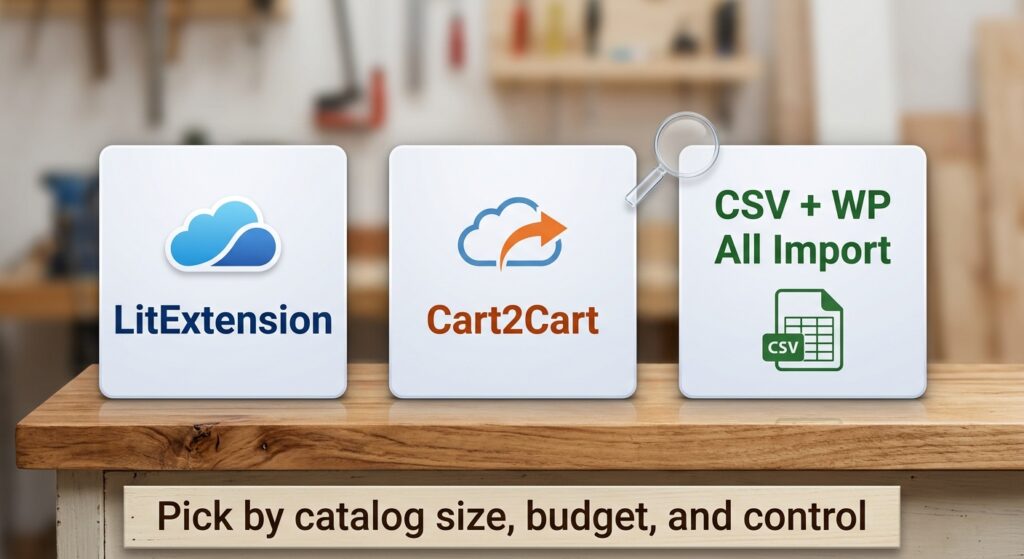
Three approaches work in 2026. Pick based on catalogue size, budget, and how much data mapping you need.
| Tool | Type | What it moves | Pricing (checked November 2026) | Best for |
|---|---|---|---|---|
| LitExtension | SaaS | Products, categories, customers, orders, coupons, CMS pages, blog posts, and reviews, plus optional 301 redirects | Entity-based pricing via an online estimator. Self-service or an expert-run All-in-One service. Unlimited free demos, free recent-data migration on the Automated plan, 30-day money-back guarantee. | Hands-off migration of standard entity sets |
| Cart2Cart | SaaS | Products, categories, customers, orders and more (check the estimator’s entity list) | Entity-based via its price estimator. Paid add-ons include preserving order IDs, 301 redirects, and SEO URLs. Free demo. | An alternative quote to compare against LitExtension |
| BigCommerce CSV export plus WP All Import | Manual (plugin) | Products, orders, and customers from your own CSV exports, with drag-and-drop field mapping, image import from URLs, and scheduled runs | Developer $149/year; Professional $299/year, which is the tier that includes WooCommerce order and customer import | Developers and agencies who want full control over mapping |
Whichever SaaS tool you choose, run the free demo first and validate the sample before paying for the full run. Both tools pull data through the BigCommerce API, so your store keeps selling throughout. The manual route has one hard limit worth knowing up front: WooCommerce core ships a product CSV importer only, with no native order or customer import. Bringing order history and customer accounts across via CSV needs WP All Import Professional, another paid import suite, or a custom script.
BigCommerce URL structure and the 301 map

This is the section that decides whether your rankings survive. Under its default SEO-optimised URL format, BigCommerce puts product and category URLs at the root of your domain (example.com/product-name/, example.com/category-name/) rather than under a prefix. WooCommerce defaults to example.com/product/product-slug/ and example.com/product-category/category-slug/. Every product and category URL therefore changes, and slugs often differ too. Because BigCommerce URLs are editable per item, build the map from your actual URL list rather than assuming a pattern.
Build the map before cutover, not after:
- Export every live URL from BigCommerce: your sitemap, the product and category CSV exports, and the existing rules in BigCommerce’s 301 redirect manager. Old redirect rules often contain URLs Google still knows about, so carry them across and point them at the final WooCommerce URL.
- Set WooCommerce permalinks before importing anything. Choose your product base in Settings → Permalinks:
/product/, the shop base, or a custom base. A custom base can partially mirror BigCommerce’s structure and reduce redirect work, but it will not eliminate it, since slugs still differ. Changing the base later means rewriting the whole map. - Map old URL to new URL 1:1. Google has said that redirecting many old URLs to one irrelevant destination, such as the homepage, can be treated as a soft 404. Redirect product to product and category to category.
- Implement at the server level for large catalogues (nginx or
.htaccess), or use the free Redirection plugin for CSV-managed rules on smaller ones. Point every redirect at the final destination in a single hop. Googlebot follows up to 10 hops, but every extra hop slows users and crawling.
Google’s site-move documentation backs this up: permanent redirects do not cause a loss in PageRank, and they should stay in place for “generally at least 1 year”. Because you are keeping the same domain, you do not need Search Console’s Change of Address tool. Submit the new XML sitemap instead.
The customer password reset flow
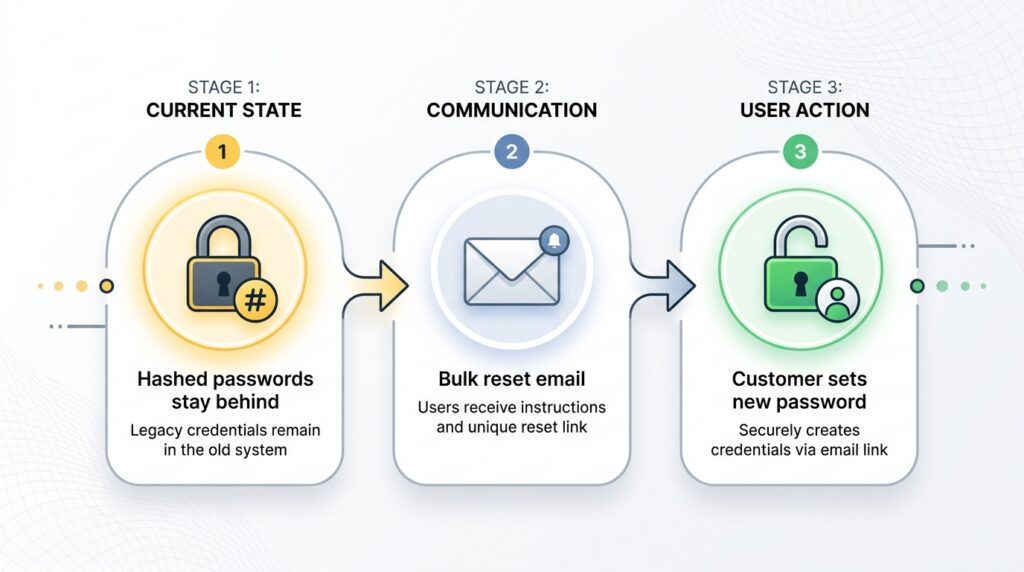
Every migrated customer account arrives on WooCommerce with no usable password. BigCommerce’s customer CSV export includes all customer data except passwords, and its API only ever writes passwords. Since WordPress stores passwords as one-way hashes too, there is nothing to carry across or convert.
The standard flow, in order:
- Import customers first, so accounts exist before the store goes live.
- Announce the change twice, a week before cutover and again on the day, so the reset email is expected rather than mistaken for phishing.
- Send the reset emails on cutover day. WordPress has a built-in Send password reset bulk action on the Users screen, which works for small lists. For thousands of customers, send through your email platform or a transactional email service, with SPF and DKIM set up for the new store, so the messages do not hit host sending limits or spam folders.
- Keep the reset link prominent on the login page for the first 30 days, and brief your support team on what customers will ask.
The pre-flight checklist

Most failed migrations fail here. Complete every item before a single row of data moves.
- Take full CSV exports from BigCommerce: products, customers and orders. Store them off-site; they are your rollback reference and your verification baseline. Do not count on re-importing orders into BigCommerce from CSV, so treat this as a backup, not a restore path.
- Create a store-level API account in BigCommerce (Settings → Store-level API accounts) if you are using a SaaS tool. The tool needs the API path, access token, and client ID to read your catalogue.
- Confirm who controls your domain and DNS. If you bought the domain through BigCommerce or its DNS is hosted there, move DNS management to your registrar or a DNS provider well before cutover, so the switch is a record change rather than a transfer.
- Provision hosting that meets WooCommerce’s current requirements. The official recommendations are WordPress 6.9+, PHP 8.3 or higher, MySQL 8.0+ or MariaDB 10.6+, HTTPS and a 256 MB memory limit. Make sure the host can issue the SSL certificate before DNS points at it. For the installation itself, see our guide to downloading and installing WooCommerce.
- Leave HPOS enabled. High-Performance Order Storage has been the default for new stores since WooCommerce 8.2. Confirm that your migration tool’s connector and planned extensions are HPOS-compatible before importing. Our HPOS migration playbook covers the details.
- Configure permalinks, theme, payments, and shipping before data lands. Permalinks first (see above), then a WooCommerce theme built against real sample products, then gateways and shipping zones tested in sandbox mode.
- Budget the extension stack. WooCommerce core is free, but replacements for BigCommerce-native features usually are not: Subscriptions is $279 a year, for example. A store relying on subscriptions, B2B pricing or carrier rates often spends several hundred to a couple of thousand dollars a year on extension licenses.
- Run the full migration to staging and verify it there. Do the entity-count checks and spot checks described in step 3 below on this first full run, so cutover day only has to verify the delta.
- Lower your DNS TTL to 300 seconds about 48 hours before cutover, so the switch, and any rollback, takes effect quickly.
The cutover sequence, step by step

Run these six steps in a low-traffic window, ideally a weekday morning and never in peak season. Google’s site-move guidance recommends timing a move to a traffic dip for the same reason.
Step 1: Freeze the BigCommerce storefront
Stop new orders, for example by disabling payment methods and showing a banner, then take one final CSV export of products, customers, and orders. Keep the store readable so you can still compare data in the next steps.
Step 2: Re-sync recent data
Run a recent-data migration to capture orders, customers, and product edits made since the full staging run. Both LitExtension and Cart2Cart offer this. Check the entity counts against your final CSV exports.
Step 3: Verify the data manually
Do not trust the tool’s success report. Open ten random products (variants, prices, images, stock), ten customers (addresses, order history), and ten orders (line items, totals, statuses), and compare each against the BigCommerce exports, prioritising records from the delta. If images or filters look wrong on the storefront, regenerate thumbnails and the product lookup tables under WooCommerce → Status → Tools.
Step 4: Load the 301 map
Load the redirect rules on the WooCommerce server and test a sample on staging, for example by pointing your own machine at the new server through its hosts file. The redirects only take over live traffic once DNS moves.
Step 5: Switch DNS
Point the domain’s A record (and the www record) at the new host. With the 300-second TTL set two days earlier, most resolvers pick up the change within minutes. Confirm HTTPS works on the live domain straight away.
Step 6: Test live, submit the sitemap, then email everyone
Run a sample of old URLs through a status-code checker to confirm single-hop 301s, then submit the new XML sitemap in Google Search Console. Place a small live-mode order and refund it, create a test account, and confirm order emails arrive and gateway webhooks register. Then send the password-reset and launch emails you announced in advance.
The first 30 days after cutover

- Watch Search Console daily for 404s and add redirects for anything the map missed. The free Redirection plugin logs 404 hits you can review weekly.
- Benchmark organic traffic against your pre-migration baseline. A temporary dip in the first weeks, often recovering within a couple of months, is normal. A steeper drop that does not recover usually means redirect gaps.
- Track checkout completion against your BigCommerce baseline. A noticeable drop usually points to a payment, tax, or shipping configuration issue rather than the platform itself.
- Keep BigCommerce access for at least 90 days, on the lowest plan that preserves your data, to cover chargeback disputes, tax records, and data lookups. Export anything else you need before you close the account.
Once the store is settled, the payoff of owning your stack is that you can tune it. In our Mighty Kids engagement, an HPOS migration and targeted optimisation took order processing from 6 seconds to 2.1 seconds per order. That kind of work needs control of the hosting and the database, which a SaaS platform keeps to itself.
If your catalogue is large, your BigCommerce apps carry critical business logic, or a ranking dip would cost real revenue, bring in a specialist. Our honest guide to choosing a WooCommerce development agency covers what to look for, and our replatforming service starts with a free scope review and a written scope and estimate, then moves to a roadmap.
Conclusion: Treat the move as a project, not an export
A BigCommerce move succeeds or fails on the parts a data export does not cover: URL redirects, customer password resets, the logic your BigCommerce apps carry, and the first 30 days after cutover. The pre-flight checklist and a rehearsed cutover sequence do more to protect revenue and rankings than the choice of migration tool.
Frequently asked questions
How long does it take to migrate from BigCommerce to WooCommerce?
Plan for roughly 2 to 8 weeks for a small-to-mid-size store. Most of that time goes to design, integrations, and testing rather than the data transfer, which a SaaS tool typically finishes in hours. Large catalogues with heavy app logic or B2B pricing can stretch the project to 2 or 3 months.
Will I lose my SEO rankings if I migrate?
Expect a temporary dip while Google recrawls and reindexes. It is usually temporary, often recovering within a couple of months with a complete 1:1 301 map, and Google says a few weeks or more is normal for medium-sized sites. Without redirects you lose far more. Google also confirms that permanent redirects do not lose PageRank, so the redirect map, not the platform change, decides the outcome.
Do my customers need to reset their passwords?
Yes, all of them. BigCommerce does not include passwords in customer CSV exports, and its API can only set a new password or force a reset, never read an existing one. Announce the change in advance and send the reset emails on cutover day.
What happens to my BigCommerce price lists and customer groups?
Customer groups migrate as customer data, but price lists do not. They are variant-level price records assigned to groups or channels, a Performance-plan feature, and no migration tool lists them as a supported entity. Rebuild them in WooCommerce with a B2B pricing plugin, mapping each BigCommerce price list to a pricing rule set.
Which tool should I use to migrate from BigCommerce to WooCommerce?
For standard catalogues, use LitExtension or Cart2Cart. Both are SaaS services with free demo migrations and entity-based pricing, and both offer 301 redirect creation as an option. If you need exact control over field mapping, export BigCommerce’s CSVs and import them with WP All Import Professional instead.